This screen enables free format notes (or graphics) to be entered against a supplier. Information stored within a notes category can be used as an internal note or can be used in your documentation.
NOTE: It is important to keep the consistency of your formatting within your notes field especially if the fields are going to be used in your documentation.
Prior to entering supplier notes, Supplier Note Categories or Database Supplier note categories must be setup in the Code Setup application (see the System Setup User Manual).
Add supplier notes
- If the supplier to which notes are to be added does not exist, create the supplier first (see Create a Supplier).
- If the supplier does exist, search for and retrieve it, so that creditor details are displayed on the screen (see Searching for Products or Suppliers).
-
When supplier details are displayed on screen, select menu
 Creditors > Details > Notes.
- Click the Creditors menu to expand it:

- Click Details to expand the

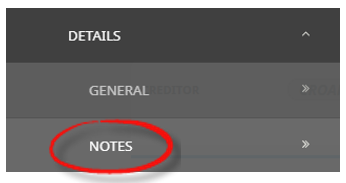
- Click Notes (expand Details if necessary) to open the Creditors Notes list:

- Click the Creditors menu to expand it:
-
ClickNew Note to add a new note entry.

-
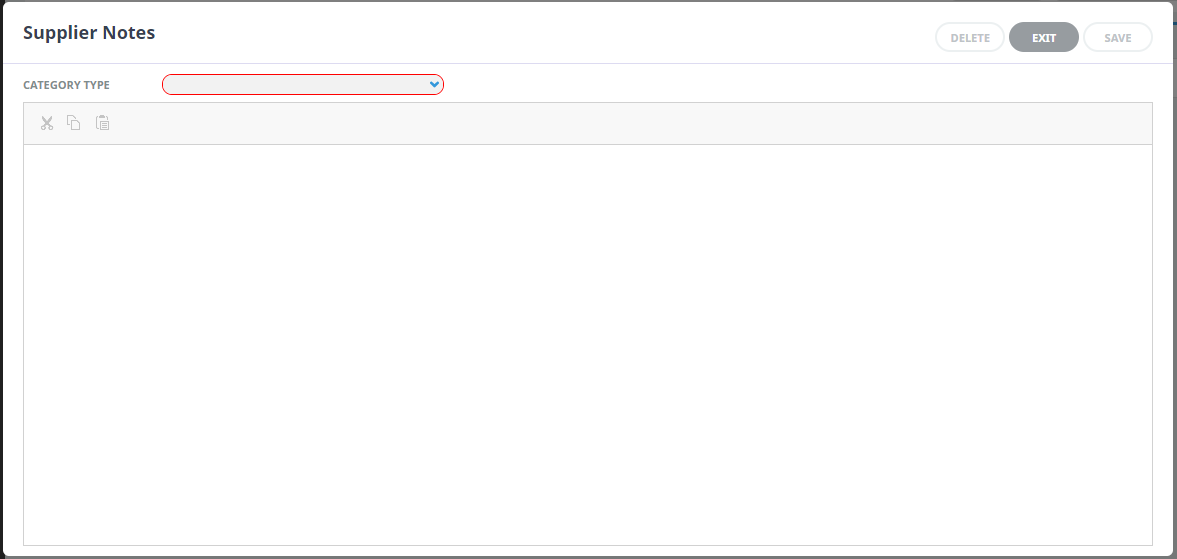
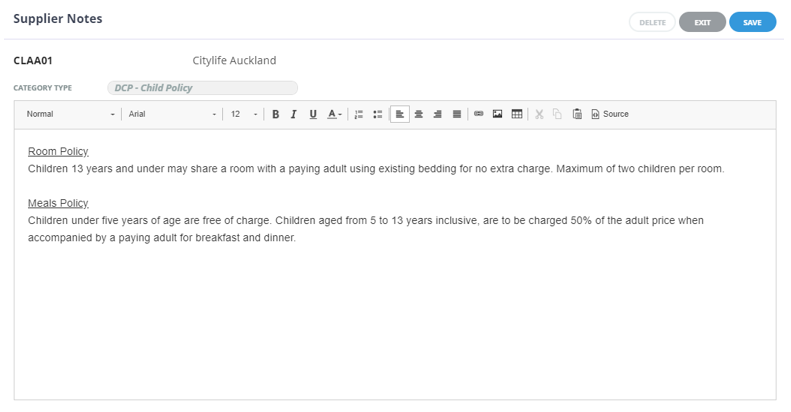
On theSupplier Notes screen, select a Category Type and enter some notes into the rich text field.
-
Check thecompleted screen.
-
ClickSave to keep the changes.

-
ClickExit to discard any changes.


About Supplier Notes Category Types
The more information that can be inserted into the creditor/supplier at the time of creation reduces time in the long run. When you go to send a message to the creditor and you have no contact details entered, the message will not send.
NOTE: Formatting is important when inserting a note for documentation etc.
Available categories for creditors in the Standard Database system are:
| Code | Description | Type |
|---|---|---|
| CAC | Accounting Notes | Creditor |
| CAG | Agreements | Creditor |
| CMV | Creditor Visit / Meeting Notes | Creditor |
| CTC | Client Complaints | Creditor |
| DCP | Child Policy | Product Supplier |
| DEM | External Supplier Mapping | Product Supplier |
| DGN | Product General - Internal | Product Supplier |
| DGO | Geo Coordinates | Product Supplier |
| DI1 | Default Image | Product Supplier |
| DI2 | Additional Image (1) | Product Supplier |
| DI3 | Additional Image (2) | Product Supplier |
| DID | Itinerary (Long) Description | Product Supplier |
| DRD | Directions | Product Supplier |
| DSP | Specials / Extras | Product Supplier |
| DTC | Service Terms and Conditions | Product Supplier |
| DWD | Web (Short) Description | Product Supplier |
| DXP | Cancellation Policy | Product Supplier |
NOTE: In the above table:
- Types marked Creditor notes are available for viewing/editing only in Creditors
- Types marked Product Supplier notes, can viewed/edited in both Product Setup and Creditors
- A note category that is defined as a Product Supplier Note will attach to all products that are created for the supplier.
If a note category displays that is not applicable to the supplier, leave the note blank.
As described in the procedure above, to enter a note, first highlight the required note category from the Category Type list, then click in the rich text editor section at the bottom of the screen and type a note. An alternative is to copy/paste information from the suppliers website and edit it accordingly.
NOTE: When copying and pasting information from a suppliers website, ensure that the text is first inserted into a word document or notepad document to strip the text into plain text before inserting (copy/paste) the text into Tourplan.
NOTE: If images are used in notes fields, the image size is determined by each user company's procedures.
About Supplier Note Field Formatting
The rich text editor section (or body) of the note is a blank page for the note text to be inserted or edited.
The Editing screen has the following items:
| Format type | Format Option Descriptions |
|---|---|
| Format | Format of the text |
| Font | Font of text (will default from Tourplan INI Setting DEFAULTFONT) |
| Size | Font Size of text (will default from Tourplan INI Setting DEFAULTFONTSIZE) |
| Style, Font and Font Size. The available styles and fonts are defaulted from the INI settings noted above. Supported fonts are included in the System Setup User Manual - INI Settings DEFAULTFONT | |
|
|
Bold - highlight the text to be bold faced and click this button |
|
|
Italics - highlight the text to be italic and click this button |
|
|
Underline - highlight the text to underlined and click this button |
|
|
Colour of text – highlight the text to change the colour and click this button |
|
|
Numbered bullet points - click this button to create a numbered list |
|
|
Bullet points - click this button to create a bullet pointed list |
|
|
Left aligned text - click this button to justify text on the left margin |
|
|
Centre aligned text - click this button to centre text between the left and right margins |
|
|
Right aligned text - click this button to justify text on the right margin |
|
|
Insert a URL link – click this button to insert the text you want showing as a hyperlink and insert the required URL
|
|
|
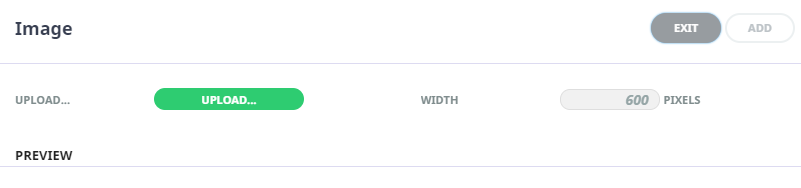
Upload an image – click the upload button to upload an image.
Locate the image file to Open, and select Add NOTE: Image size guidelines are determined by each user company’s procedures. |
|
|
Insert a table – click this button to insert a table |
|
|
Cut text (Ctrl+X), highlight text to be cut and click this button |
|
|
Copy text (Ctrl+C), highlight the text to be copied and click this button |
|
|
Paste text (Ctrl+V), place the cursor at the point where copied/cut text is to be placed and click this button |
|
|
Selecting this button will show the text editor in CSS styling source code |